¶ Overview:
This guide explains how to configure Jenkins to authenticate users via Keycloak using OpenID Connect (OIDC). This allows Keycloak users to log in without creating separate Jenkins accounts.
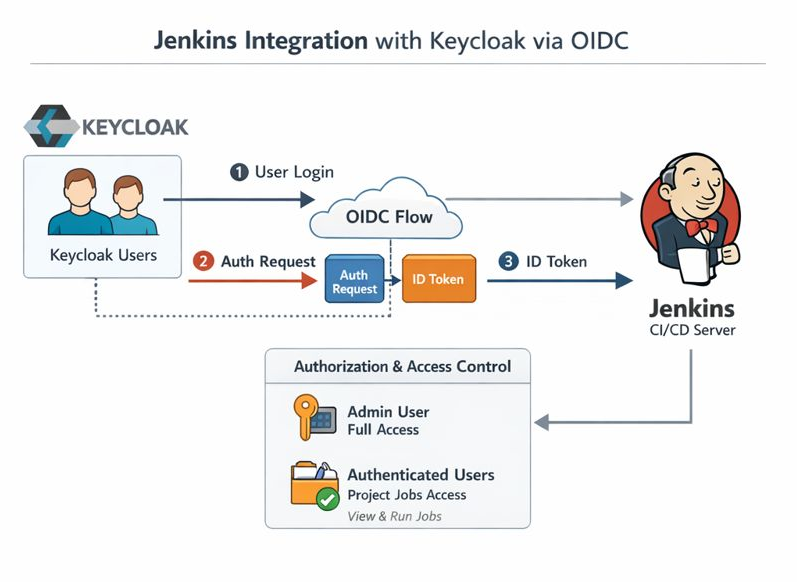
¶ Prerequisites
- Jenkins server installed and accessible via "https/fqdn.domain.net"
- TLS termination done at haproxy or otherwise externally.
- Keycloak realm with users/groups defined
- Admin access to Keycloak
- Network connectivity between Jenkins and Keycloak
¶ Step 1: Create Keycloak Client for Jenkins
- Go to Keycloak Admin Console → Clients → Create
- Client ID: jenkins
- Protocol: openid-connect
- Root URL: https://<JENKINS_URL>/
-
Configure client:
- Access Type: confidential
- Standard Flow: ON
- Direct Access Grants: ON (optional)
- Valid Redirect URIs: http://<JENKINS_URL>/securityRealm/finishLogin
- Web Origins: *
- Copy Client Secret for Jenkins configuration.
¶ Step 2: Install Jenkins OIDC Plugin
- Jenkins → Manage Jenkins → Manage Plugins → Available
- Search for OpenID Connect / OIDC Plugin → Install → Restart Jenkins

¶ Step 3: Configure Jenkins Security Realm
- Jenkins → Manage Jenkins → Configure Global Security
- Security Realm → OpenID Connect
- Client ID → jenkins
- Client Secret → (from Keycloak)
- Discovery URL → https://<KEYCLOAK_HOST>/realms/<REALM_NAME>/.well-known/openid-configuration
- Scopes → openid profile email
- Claim used for login → preferred_username
¶ Step 4: Configure Authorization
- Use Project-based Matrix Authorization plugin
- Map roles/groups:
- local admin remains full admin for fallback
- Authenticated users → can run jobs / view projects
- selected users specified with full userid can be admins /requires the user to have logged in at least once)
- Optional: map Keycloak groups to Jenkins roles via claim mapping

¶ Step 5: Test login
Using a different device or browser, so you do not have to logout yet as admin, do
- Attempt login with a Keycloak user
- Verify access levels per authorization settings
¶ Tips
- Keep a local admin user for emergency access
- Use Keycloak groups to control Jenkins role assignments
- Use HTTPS for production setups